Memos 是一个开源的、自托管的备忘录中心,可以通过 Docker 快速部署,简化了安装流程。用户可以通过 Docker 命令直接启动 Memos,也可以使用 Docker Compose 进行部署。此外,Memos 还提供了丰富的文档和社区支持,帮助用户更好地使用和定制 Memos。
memos开源笔记的官网:https://www.usememos.com/
项目的github地址:https://github.com/usememos/memos
下面演示在一个ubuntu环境下使用docker安装,并且拉取memos的镜像,创建容器的全过程。
安装docker
直接使用apt从仓库安装就可以了,在debian一系的发行版本中,不管是debian、ubuntu、mintlinux等等,docker应用的名称是docker.io
demouser@demohosts:~$ sudo apt install docker.io
安装完成后,可以通过下面的命令查看docker的版本,验证是否安装成功
demouser@demohosts:~$ docker --version
Docker version 24.0.7, build 24.0.7-0ubuntu4.1
添加非管理员用户不需要添加sudo使用docker命令。
demouser@demohosts:~$ sudo usermod -aG docker $USER && newgrp docker
拉取进行并启动服务
首先先从Docker Hub上面拉取memos的镜像
demouser@demohosts:~$ docker pull ghcr.io/usememos/memos:latest
latest: Pulling from usememos/memos
43c4264eed91: Pull complete
e4ad2d558c82: Pull complete
aea3516bf08d: Pull complete
8b4d58d0bc02: Pull complete
063e046c1f0f: Pull complete
Digest: sha256:7dffaf5ba7692d64efd50bc4949e8378abf5e1c9b08aed854448a374ff25d976
Status: Downloaded newer image for ghcr.io/usememos/memos:latest
ghcr.io/usememos/memos:latest
拉取完成后,使用下面的命令查看docker的镜像
demouser@demohosts:~$ docker images
REPOSITORY               TAG       IMAGE ID       CREATED      SIZE
ghcr.io/usememos/memos   latest    cf09edd939c3   2 days ago   64.3MB
如果有这个ghcr.io/usememos/memos的镜像,就已经拉取镜像成功了。然后就可以启动服务了,使用下面的命令启动即可。
demouser@demohosts:~$ docker run -d   --init   --restart=always   --name memos   --publish 5230:5230   --volume ~/memos/:/var/opt/memos   ghcr.io/usememos/memos:latest
21a0cb84e80de36732f291dd3f70a52cacc5c58fbd44899926db86461c3ddfe0
--volume ~/memos/:/var/opt/memos :上面的启动是使用了镜像里面的sqlite,为了后面大数据管理方便和防止数据丢失,将容器内的数据目录映射并挂载出来。
--publish 5230:5230:映射5230端口到本地的5230端口
查看运行情况
使用下面的命令查看运行情况:
demouser@demohosts:~$ docker ps
CONTAINER ID   IMAGE                           COMMAND     CREATED          STATUS          PORTS                                       NAMES
21a0cb84e80d   ghcr.io/usememos/memos:latest   "./memos"   41 seconds ago   Up 40 seconds   0.0.0.0:5230->5230/tcp, :::5230->5230/tcp   memos
使用docker-compose启动(和上面的方法二选一)
安装docker-compose
下载并将其存放在/usr/local/bin/docker-compose 目录中,再赋执行权。
demouser@demohosts:~$ sudo curl -SL https://github.com/docker/compose/releases/download/v2.29.6/docker-compose-linux-x86_64 -o /usr/local/bin/docker-compose
  % Total    % Received % Xferd  Average Speed   Time    Time     Time  Current
                                 Dload  Upload   Total   Spent    Left  Speed
  0     0    0     0    0     0      0      0 --:--:--  0:00:19 --:--:--     0
100 60.8M  100 60.8M    0     0  40985      0  0:25:56  0:25:56 --:--:-- 45843
demouser@demohosts:~$ sudo chmod +x /usr/local/bin/docker-compose
创建规约文件
docker-memos.yaml内容如下:
version: "3.0"

services:
  memos:
    image: ghcr.io/usememos/memos:latest
    restart: always
    ports:
      - "5230:5230"
    volumes:
      - /data/memos/:/var/opt/memos
文件中镜像的标签加上latest,这样每次提示有更新的时候,也就咱们down掉旧的容器,重新up就可以下载到最新的镜像了。而且把保存数据的目录已经挂载到宿主机的目录中,不怕数据的丢失问题。
启动容器
demouser@demohosts:~$ sudo mkdir -p /data/memos
demouser@demohosts:~$ sudo chmod 777 -R /data/memos
demouser@demohosts:~$ docker-compose -f docker-memos.yaml down
WARN[0000] /home/demouser/docker-memos.yaml: the attribute `version` is obsolete, it will be ignored, please remove it to avoid potential confusion
[+] Running 1/1
 ✔ Network demouser_default  Removed                                                                                            0.2s
demouser@demohosts:~$ docker-compose -f docker-memos.yaml up -d
WARN[0000] /home/demouser/docker-memos.yaml: the attribute `version` is obsolete, it will be ignored, please remove it to avoid potential confusion
[+] Running 2/2
 ✔ Network demouser_default    Created                                                                                          0.1s
 ✔ Container demouser-memos-1  Started                                                                                          0.4s
访问memos服务
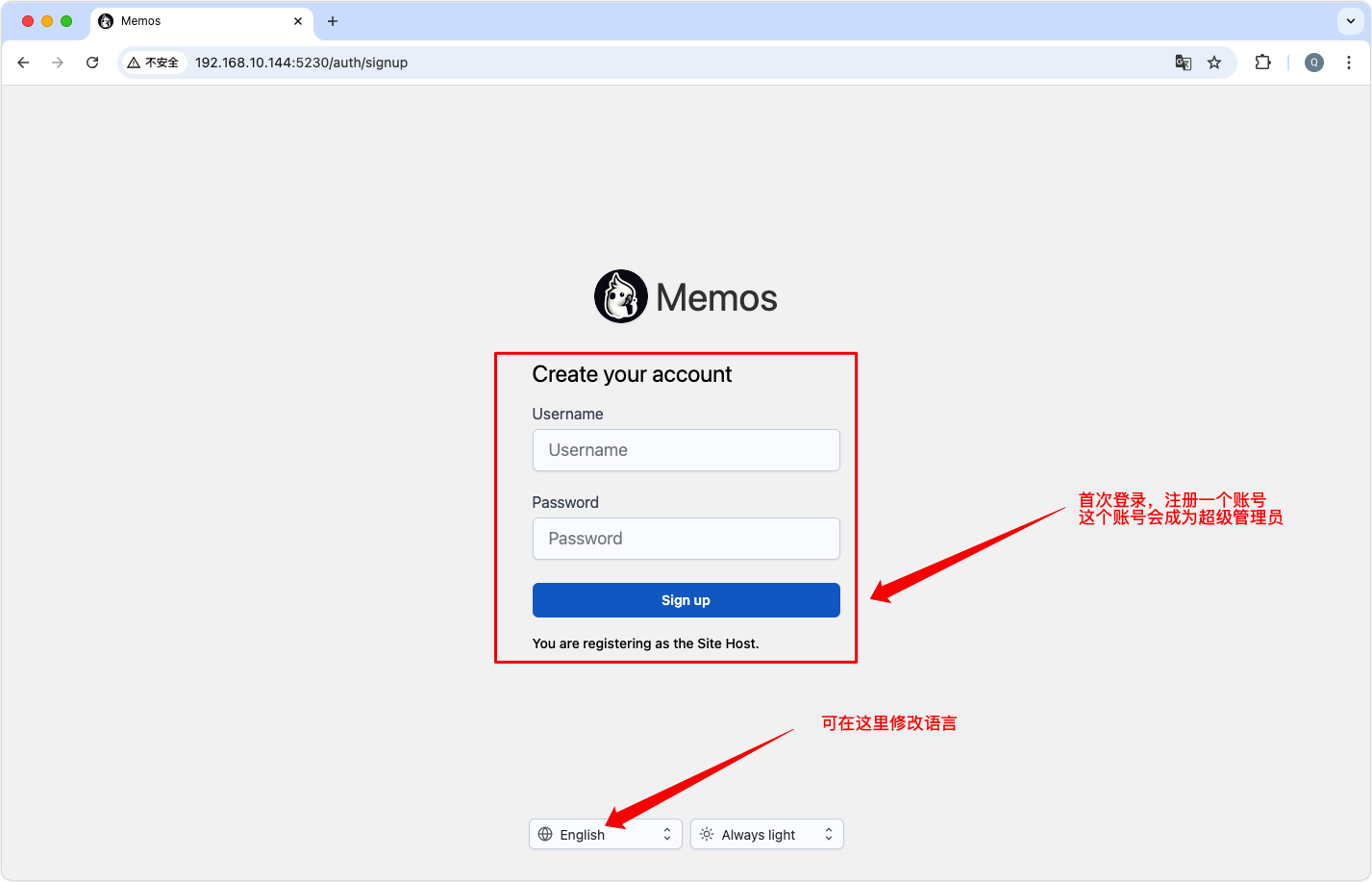
浏览器输入 Server_IP:5230 进行访问,server_IP是你服务器的IP。
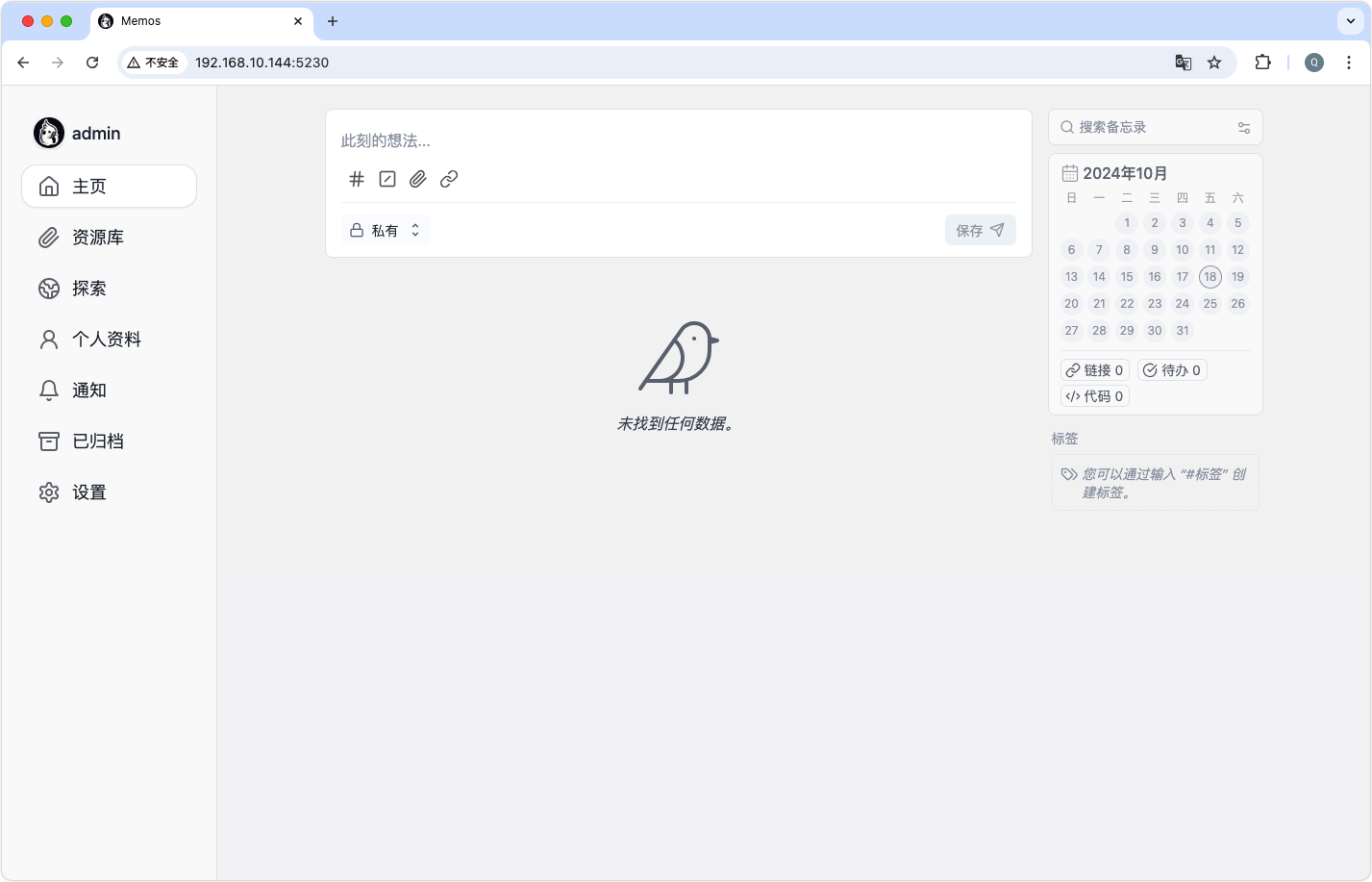
注册完成后,就可以进入到个人的后台了。编写的内容可以设置是否公开。添加标签,添加附件或连接,支持markdown等等
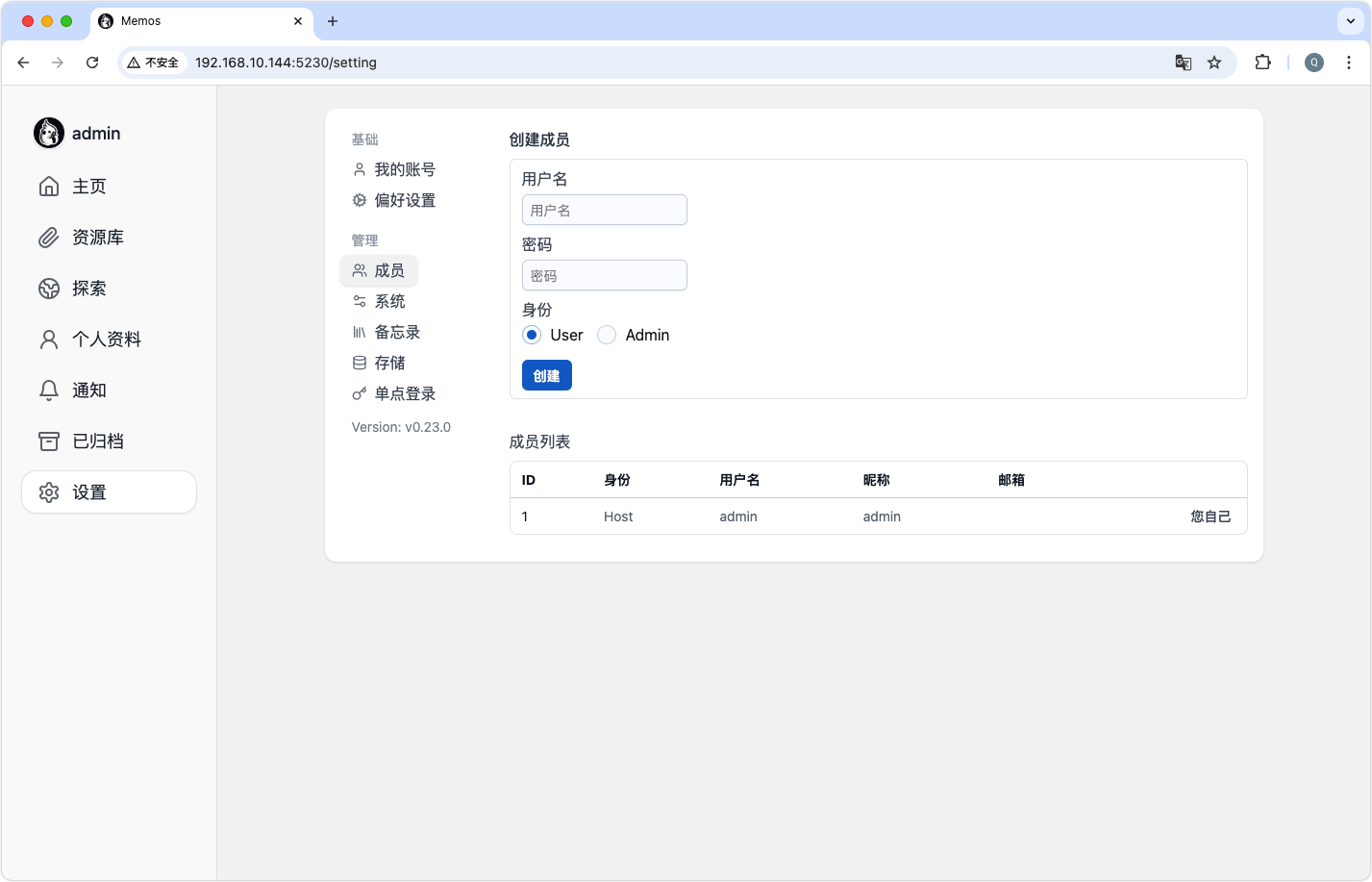
在左边的【设置】里面,可以对系统进行设置,也可以创建别的用户,并且管理是否开放用户注册功能。
具体的功能请自行探索。