Slack 是一款面向团队协作的群组工具,专为那种「同事散落在不同地方」的团队设计——当然,任何公司其实都能从它身上捞到好处。本质上,Slack 是一款即时通讯软件。除了私聊,它还支持「频道」式的沟通,你可以按项目、按客户、按团队,或者按你们公司觉得顺手的任何维度来拆分对话。
这款软件的母公司 Slack Technologies 已在公开市场上市,全球有十几个办事处。
上手这款工具,用户可以在各自平台上装 Slack 客户端,macOS、Windows、Linux、Android 都有。官方提供免费版和付费版,付费档是给企业准备的,免费档则面向小团队。
免费版当然可以一直用,但限制也不少。比如搜索只能翻到最近 10,000 条消息;自带应用和第三方应用的集成数量也有限制;而且没法邀请访客(比如潜在客户)进频道。
在 Windows 11 或 10 上安装 Slack 的命令
装 Slack 的路子其实不少,微软商店能装,官网也能直接下 exe 安装包。不过要是你就喜欢在命令行里折腾,那可以按下面的步骤来。
第一种方法:
用 Winget 命令行下载 Slack
Windows 10 和 11 已经内置了微软自家的包管理器 Winget。有了它,我们就能在命令行界面里装各种常用软件包。用它装 Slack 的步骤如下。
1. 打开 Windows Terminal 或 PowerShell
按你的系统版本打开默认的命令行工具。操作很简单:右键点 Windows 开始按钮,选 PowerShell(管理员) 或 Windows Terminal(管理员)。
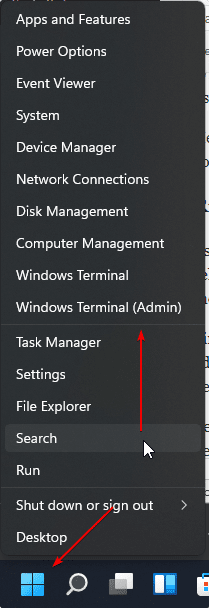
2. 检查有没有 Winget
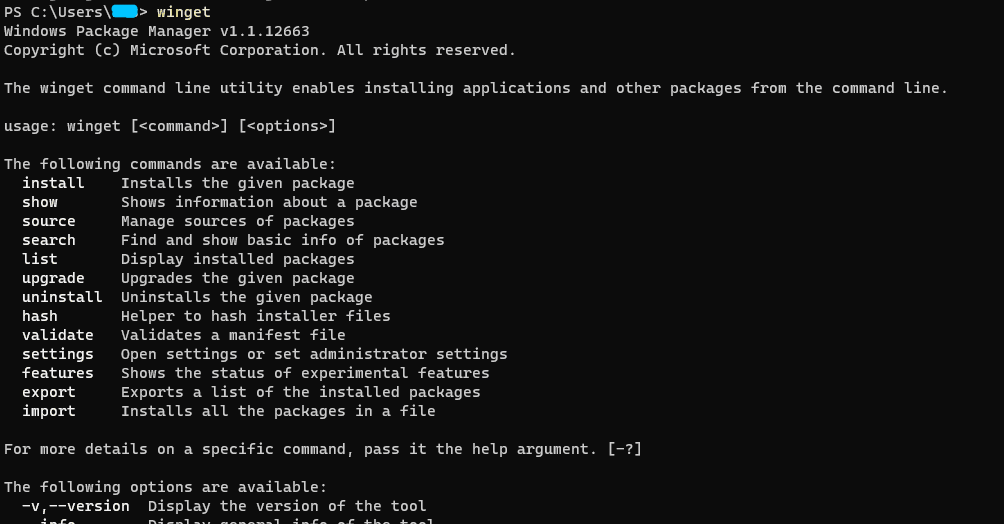
较新版本的 Windows 10 一般都已经带了 Winget;要是没有,去 Github 页面下个安装包装上就行。另外,你也可以看看我们那篇 Winget 的文章。Windows 11 用户啥都不用管,系统开箱就带这个包管理器。
在命令行里敲下面这条命令,就能看它到底有没有:
winget
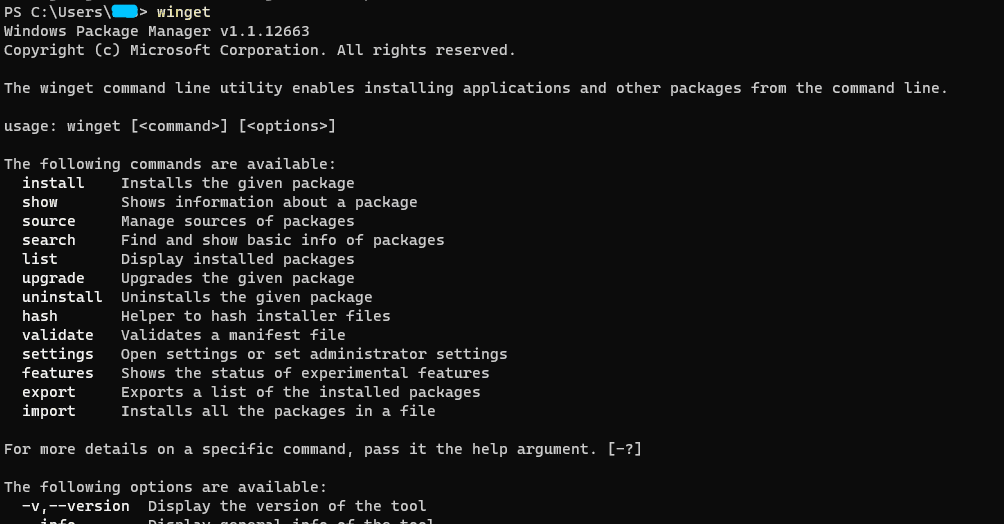
3. 在 Windows 10 或 11 上安装 Slack 的命令
接下来,只要跑下面这条命令,就能用命令行把 Slack 装上。
winget install SlackTechnologies.Slack
当它问你同不同意条款时,输入 A 再按 回车。
输出:
PS C:\Users\h2s> winget install SlackTechnologies.Slack
Found Slack [9WZDNCRDK3WP] Version Unknown
This package is provided through Microsoft Store. winget may need to acquire the package from Microsoft Store on behalf of the current user.
Version: Unknown
Publisher: Slack Technologies Inc.
Publisher Url: https://www.slack.com
Publisher Support Url: https://get.slack.help/hc/en-us
Description: Slack brings team communication and collaboration into one place so you can get more work done, whether you belong to a large enterprise or a small business. Check off your to-do list and move your projects forward by bringing the right people, conversations, tools, and information you need together. Slack is available on any device, so you can find and access your team and your work, whether you're at your desk or on the go.

Use Slack to:
• Communicate with your team and organize your conversations by topics, projects, or anything else that matters to your work
• Message or call any person or group within your team
• Share and edit documents and collaborate with the right people all in Slack
• Integrate into your workflow, the tools and services you already use including Google Drive, Salesforce, Dropbox, Asana, Twitter, Zendesk, and more
• Easily search a central knowledge base that automatically indexes and archives your team's past conversations and files
• Customize your notifications so you stay focused on what matters

Scientifically proven (or at least rumored) to make your working life simpler, more pleasant, and more productive. We hope you'll give Slack a try.

Stop by and learn more at: https://slack.com/
License: ms-windows-store://pdp/?ProductId=9WZDNCRDK3WP
Privacy Url: https://slack.com/privacy-policy
Copyright: © Slack Technologies, Inc.
Agreements:
Category: Business
Pricing: Free
Free Trial: No
Age Ratings: 12
Terms of Transaction: https://aka.ms/microsoft-store-terms-of-transaction
Seizure Warning: https://aka.ms/microsoft-store-seizure-warning
Store License Terms: https://aka.ms/microsoft-store-license

The publisher requires that you view the above information and accept the agreements before installing.
Do you agree to the terms?
[Y] Yes [N] No:
第二种方法:
如果你不想用 Winget,或者系统(Windows 7 / 10 / 11)上本来就有 Chocolatey,那也能装。要是都没有,就先按下面这条命令装上第三方包管理器 Choco,再装 Slack。
以管理员身份运行 PowerShell 或 Windows Terminal
跟上面一样,右键点 Windows 开始按钮,用管理员权限打开命令行工具。
安装 Chocolatey(Choco,如果还没装)
接着,把下面这条命令复制粘贴到 PowerShell 或 Terminal 里,装上 Chocolatey 包管理器。
Set-ExecutionPolicy Bypass -Scope Process -Force; [System.Net.ServicePointManager]::SecurityProtocol = [System.Net.ServicePointManager]::SecurityProtocol -bor 3072; iex ((New-Object System.Net.WebClient).DownloadString('https://community.chocolatey.org/install.ps1'))
community.chocolatey.org/install.ps1正是 Chocolatey 官方当前推荐的安装脚本地址,直接可用;真正已弃用的是更早的chocolatey.org/install.ps1。
关掉再打开命令行工具
跑完上面那条命令装好 Choco 之后,把 PowerShell 或 Terminal 关掉,再重新打开一次。
在 Windows 上用 Choco 安装 Slack
现在,就能用大名鼎鼎的 choco 包管理器来装这款通讯协作平台了。
choco install slack
输出: